
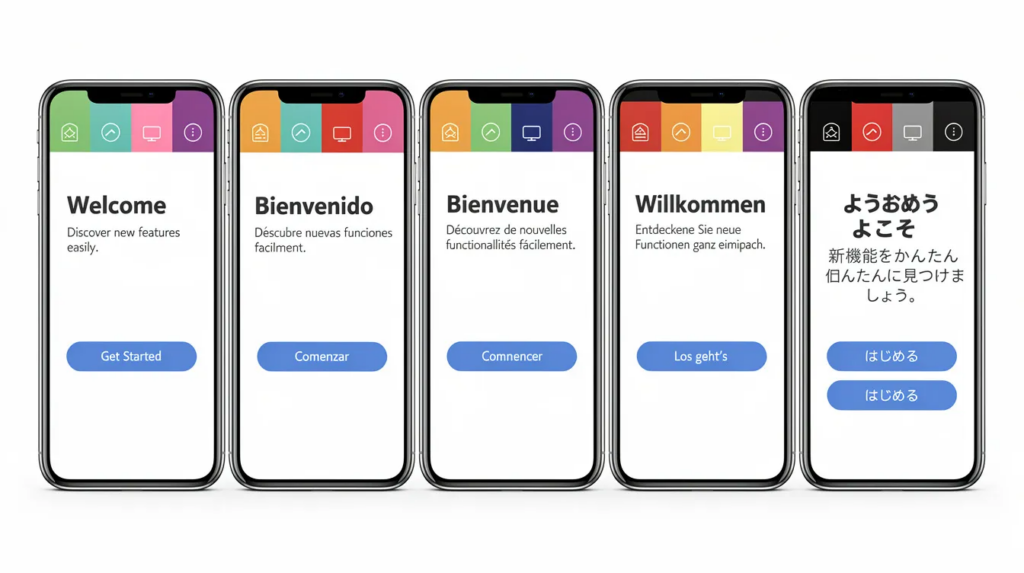
The choices you make in Figma today determine whether your app thrives or struggles in international markets tomorrow. Mobile app localization is the process of adapting an app’s user interface and functionality for users in different target markets, ensuring that every asset of the app is tailored to users’ cultural preferences and expectations. When designers skip localization planning, the results show up fast – truncated labels, overlapping icons, and one-star reviews that tank visibility in app store algorithms.
This article walks through the complete journey from Figma to app store, covering how to design a flexible app user interface, structure components for multiple languages, hand off cleanly to developers, and prepare localized app store listings for Apple App Store and Google Play. By 2026, multilingual apps are projected to capture 65% of global app revenue as mobile usage in emerging markets surges past 4.5 billion users. Localized apps consistently outperform English-only versions, with reports showing 128% higher app downloads in non-English markets and 25% better retention rates.
We’ll cover UI flexibility for text expansion, component resilience, handoff protocols, pre-code visual testing, app store localization, and app store optimization for different target markets.
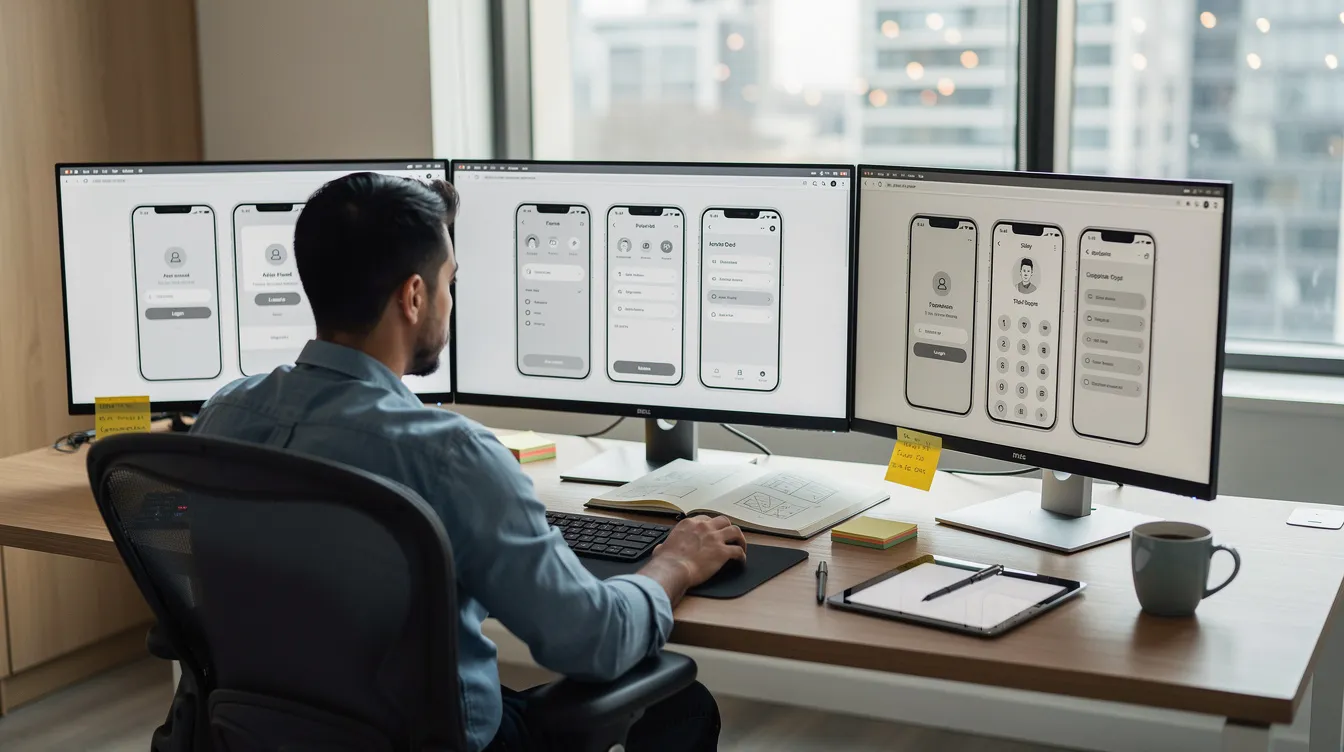
Designing Localization-Ready Screens in Figma
Designing with localization in mind means structuring your Figma files so text and layout adapt gracefully across locales before a single line of code gets written. To ensure a smooth app launch, it is crucial to take care of app internationalization in the early stages of app development and design, allowing for more effective management of localization efforts and costs.
File structure basics:
|
Element |
Purpose |
|
Pages |
Separate user flows (onboarding, dashboard, settings) |
|
Frames |
Individual screens sized to real devices (iPhone 15: 393x852pt) |
|
Components |
Reusable UI elements (buttons, cards, nav bars) |
Text expansion planning:
German averages 25-35% longer than English. Russian runs 20-40% longer due to Cyrillic diacritics. Arabic can be 15-30% longer with RTL stacking. For example, “Update Profile” (13 characters) becomes “Profil aktualisieren” (20 characters) in German. Build 30-40% horizontal padding into buttons, tabs, and labels.
Use Auto Layout extensively for responsiveness and structure components with variants for better integration with code. Apps like Appy Pie and Bravo Studio use your Auto-Layout settings to determine how elements stack and scale on different screen sizes. Set constraints to leading/trailing (not left/right) so elements flip correctly for RTL languages.
Typography requirements:
- Choose fonts supporting Latin, Cyrillic, Arabic, and CJK scripts (SF Pro covers most)
- Set minimum 17pt body text following Apple’s Human Interface Guidelines
- Use 1.5x line-height scaling for vertical buffers
Avoid baking text into images entirely. Keep all app text as editable text layers so downstream app localization tools can extract and translate them. Annotate screens with notes for development teams: maximum character counts, truncation rules (“ellipsis on overflow”), and allowed line breaks.
Component Systems That Survive Localization
Robust Figma component libraries form the backbone of a scalable app localization strategy. A 2025 survey of 500 teams found that well-structured component systems reduced handoff errors by 60%. Component-Driven Design means building reusable elements as components with clear variants to mirror how mobile frameworks structure code.
Build localization-aware components that stretch without breaking:
- Buttons: Use Auto Layout with “hug contents” plus fixed minimum widths (48pt per Apple’s Human Interface Guidelines)
- Nav bars: Set fluid tab widths that accommodate longer translated text
- Cards: Create resizable text blocks with proper vertical stacking
- Alerts: Allow multi-line error messages without cropping
Create variants anticipating text length differences – Button/Long (“Save Changes”) vs. Button/Short (“Save”). Establish Design Tokens using Styles and Variables for every color, font, and spacing unit to create “design tokens” that map directly to code variables. Semantic Naming means naming your layers clearly so conversion tools can correctly identify their purpose.
A well-structured localization application approach ensures that design components created in Figma can be easily adapted for multiple languages without breaking layouts or compromising user experience during the transition to development and app store deployment.
For RTL support (295M Arabic and 9M Hebrew speakers), design mirrored variants with directional constraints. A flexible English card (“Buy Now”: 120pt wide) should stretch to German (“Jetzt kaufen”: 160pt) and flip correctly for Arabic (“اشترِ الآن”: 150pt mirrored) while maintaining icon alignment.
From Figma to Development: Handoff for Multilingual Apps
Poor Figma-to-code handoff causes 70% of localization defects, manifesting as two-week delays per locale and app store submission rejections. Before starting the technical conversion, ensure your Figma file is “developer-ready” to prevent layout errors and manual rework.
Externalizing copy:
Document all user interface strings using content styles or IDs. Export text via plugins to formats your development workflow supports:
|
Format |
Best For |
|
JSON |
React Native, web apps |
|
XLIFF |
iOS .strings files |
|
CSV |
Android res/values |
Connect Figma designs to translation management systems using Figma plugins or manual exports. Tools like Bravo Studio use “Bravo Tags” to identify functional elements in the app, and similar tagging approaches help localization teams map strings to UI elements.
Locale-specific formatting:
Include explicit notes for iOS developers and Android teams on date formats (MM/DD/YYYY for US vs. DD/MM/YYYY for EU), currency format ($9.99 US vs. 9,99 € DE), and units of measurement. Tag layouts requiring RTL support, plural forms handling, and dynamic content so developers wire them to proper i18n frameworks.
Converting a Figma design into a published app involves two primary paths: using no-code/AI platforms for speed or a developer workflow for complete customization. Regardless of the path you choose, your Figma file must be well-prepared to ensure the conversion is accurate. Use versioning like “v2.1-JP” to sync Figma branches with Git repositories, preventing drift between design and code.
Testing Localization Visually in Figma Before Coding
Catching localization issues early in Figma saves 80% compared to fixing them during device testing. Pseudolocalization is a testing method that simulates how text will look in different languages by altering the original language, helping to identify layout issues before actual translations are made.
Pseudolocalization approach:
Inflate English strings by 30% with accented characters (e.g., “Login” → “łøģïñññ”) to reveal overflows before real translations arrive. This lets you spot truncations, wrapping issues, and alignment problems immediately.
Multi-locale prototypes:
Create duplicate frames for each target locale (EN/DE/JA/AR) to check:
- Text wrapping and overflow behavior
- Icon directionality (arrows should reverse for RTL)
- Cultural appropriateness of imagery
- UI element alignment across different scripts
Iterative Testing means frequently testing in a real environment to spot layout issues early. Share prototype screenshots with your localization team so translators see the app user interface context – this prevents ambiguous translations like “Save” becoming the wrong type of “save” in different languages.
Accessibility checks:
Verify that 4.5:1 contrast ratios hold when fonts change, tap targets maintain 44x44pt minimum when text grows, and 1.4x line-height prevents cramped CJK characters. This design-level QA reduces workload during later app localization testing on real devices.
Preparing Localized App Store Listings from Figma Assets
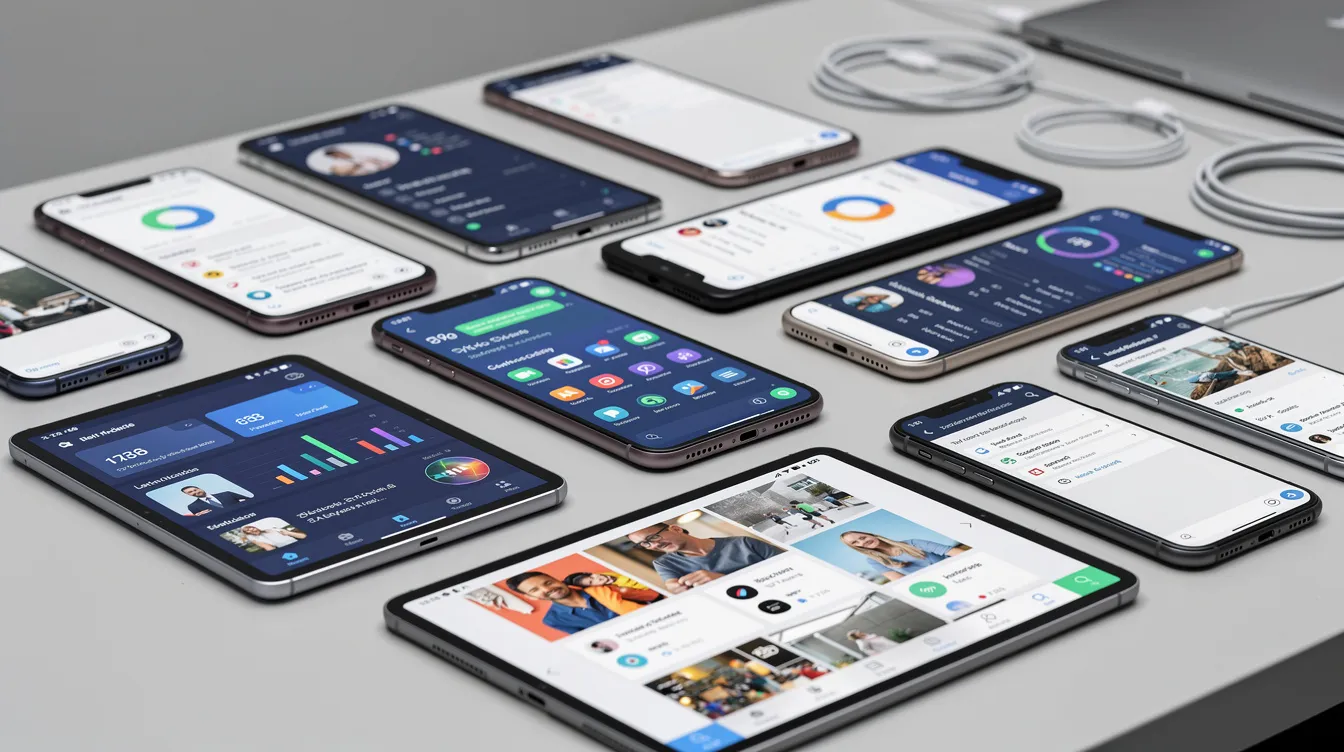
Figma exports directly feed your localized app store listings, which drive app downloads and conversion. App Store Optimization (ASO) involves optimizing app store listings, including app titles, descriptions, and screenshots, to increase visibility and drive downloads. Localizing app store listings with translated content and visuals improves app visibility and downloads, making it essential for reaching app users worldwide.
Screenshot templates:
Design using standard iPhone frame sizes to ensure proper scaling. Create master templates for each device size (iPhone 15 Pro, Pixel 8) with locale-switchable layers:
- Localized UI in the screenshot (not generic mockups)
- Translated captions with market-specific keywords
- Consistent visual language across all app store connect submissions
Prepare Assets by exporting high-resolution icons and screenshots directly from Figma to meet Apple’s exact dimension requirements. Generic screenshots drop click-through rates by 22%, while localized content boosts conversions by 35%.
ASO alignment:
Effective ASO should be tailored to each market, taking into account local keywords that influence user behavior and search results. Place important localized keywords in first-slot captions – for example, “Mood Tracker App auf Deutsch – Tägliche Stimmungsanalyse” for German markets.
Optimizing app metadata, including titles and descriptions, can help increase app visibility, downloads, ratings, and reviews, contributing to overall app store revenue. Design video storyboards (10-second onboarding loops) that can be exported and localized per market. Ensure app titles, subtitles (255 chars), and app store descriptions written for each locale visually match your Figma design language.
App Localization Strategy Across Design, Development, and Release
Effective app localization requires a strategic approach that includes planning how the app adapts to cultural, linguistic, and technical differences across regions. Proper planning for internationalization during the app development stage can prevent costly rework, formatting issues, and user frustration later on. Internationalization (i18n) is the process of designing an app so that it can easily adapt to different languages and regional settings without requiring engineering changes later.
Phased rollout approach:
|
Phase |
Locales |
Focus |
|
Pilot |
English + Spanish |
Core flows, 80% revenue impact |
|
Expansion |
German, Japanese |
High-value markets |
|
Scale |
Arabic, Portuguese, Korean |
Emerging markets |
Localization types can be categorized into Minimum Viable Localization (MVL) and Full App Localization, each serving different business needs and market entry strategies. Minimum Viable Localization (MVL) focuses on translating only the essential elements of an app, such as the user interface and app store descriptions, to quickly enter new markets with minimal investment. Full App Localization involves adapting all aspects of an app, including content, visuals, and user experience, to create a native experience for users in different markets.
Prioritize which screens to localize first – onboarding, paywall, and checkout typically drive 60% of dropoff improvements. Connect app localization tools to CI/CD pipelines so Figma-driven UI changes trigger updated resource files and builds for each locale automatically.
Monitor app reviews and in-app analytics by language to find UX gaps post-launch. When localizing mobile apps, it is important to consider both language and locale, as they impact user experience significantly, including aspects like currency format and date formats. Create feedback loops where designers update Figma layouts based on localized user feedback, then ship improvements in regular app release cycles.
Localization Testing and QA Before App Store Submission
Design-time checks in Figma differ from full app localization testing on actual devices. You must connect “logic” to your designs after handling the visuals – and then validate everything works across locales. Testing localized apps on real devices is crucial, as mobile simulators and emulators may not catch every localization issue, particularly for right-to-left languages and font rendering.
Linguistic QA:
- Verify translations against glossary for consistency
- Check tone matches local users expectations (formal Japanese vs. casual English)
- Compare translated text strings against Figma designs for context accuracy
Functional QA tasks:
|
Check |
What to Look For |
|
Layout |
Truncated UI strings, clipped buttons, overlapping elements |
|
Navigation |
Broken flows, misaligned tabs in different languages |
|
OS versions |
Issues specific to iOS 17 vs. iOS 18, Android 15 |
Combining linguistic review with functional testing during the localization process helps to minimize errors and ensure a smoother user experience once the app goes live. Use device farms (BrowserStack), beta programs (TestFlight, internal testing tracks), and in-country testers for culturally sensitive aspects.
Log issues back into Figma via comments or linked tickets so designers can correct component behavior. Test system integrations – push notifications, widgets, Siri/Assistant commands, and in-app error messages in each language. You must follow Apple’s strict submission guidelines once your app is functional and tested. Export the code/project file, then open the project in Xcode, configure certificates, and publish via App Store Connect after passing localization QA.
Conclusion: Turning Figma Files into Global-Ready Apps
Every decision in Figma – from component structure to text padding – directly shapes localization quality and app market expansion success. To ensure a smooth localization process, it is essential to build flexibility into the app’s user interface, allowing it to accommodate different languages and cultural norms without breaking the layout.
The journey from Figma to app store spans localization-ready design, resilient component systems, clean handoff to development, early visual testing, localized app store assets, and thorough QA. Each phase interconnects: flexible Auto Layout enables text expansion, proper tagging enables clean exports, and consistent design tokens enable developer implementation.
Design, development, and marketing must collaborate around a shared app localization strategy rather than treating it as an afterthought. A fully localized app captures a global audience, drives higher app engagement, and earns better app reviews than English-only alternatives.
Looking ahead, AI-assisted workflows and evolving app localization tools will accelerate these processes further. Teams that master localization-ready design today gain a competitive advantage as mobile platforms expand into new markets. Start with internationalization in your next wireframe – your future local users will thank you.
FAQs
How early should I think about localization in Figma?
Start at wireframing. Retrofitting localization after designs are final costs 3-4x more and risks breaking layouts. A 2024 case study showed one major app’s French localization delay cost three months and significant revenue loss due to rigid initial designs.
Do I need separate Figma files for RTL languages like Arabic and Hebrew?
No. Use variants and directional constraints (leading/trailing instead of left/right) within one file. Create mirrored master components that handle RTL automatically, keeping everything in a single source of truth.
Which export formats work best for moving copy from Figma to development?
XLIFF works best for iOS native development, JSON suits web and React Native projects, and CSV handles Android simple resource files well. Properly named layers and frames simplify the auto-conversion process. Use plugins that automate exports to your localization platform.
How can I design screenshots once and adapt them efficiently for multiple app store listings?
Create master templates with locale-switchable text layers. Batch export using Figma plugins – teams typically produce 10 localized screenshot sets in under two hours using this approach.
How do I measure whether localization efforts are working?
Track app downloads per locale, conversion rates from store views, day-7 retention by language, and localized app reviews scores. A 25% ASO lift and 18% retention improvement are typical benchmarks for well-localized ios and android apps versus English-only versions.
What are the most common localization mistakes to avoid at the design stage?
Three critical errors: text baked into images (untranslatable), fixed-width UI elements (expansion bombs), and ignoring plural forms (grammatical errors in many languages). Address all three during initial Figma setup to prevent costly fixes later.